Christmas Desktop Wallpapers
Aesthetic Christmas desktop wallpapers bring a seasonal look to your computer without making the screen feel cluttered. Choose a high-quality image that suits your style and fits your display, then set it as your desktop background.
Aesthetic wallpaper ideas
A calm Christmas wallpaper can feature soft lights, snowy trees, evergreen branches, or a simple winter scene. If you prefer a bolder look, try colorful ornaments, festive patterns, or a decorated tree.
For a desktop that stays easy to use, look for an image with open space where your icons appear. Muted colors and simple compositions can also help keep the screen from feeling busy.
- Minimal: a small tree, star, or sprig of greenery on a plain background
- Cozy: a warmly lit room, candles, or a mug beside a window
- Winter: snow-covered trees, a quiet village, or frosted branches
- Festive: colorful baubles, candy canes, or twinkling lights
How to set a Christmas wallpaper
First, save the image to your computer. The exact menu names may vary slightly by operating system version.
- 1Choose an image with enough resolution for your screen and download it from a source you trust.
- 2On Windows, open Settings, go to Personalization, then Background, and choose the saved image.
- 3On a Mac, open System Settings, select Wallpaper, and choose the saved image or add it from your files.
- 4Check how the image fits the screen and select a different fit option or image if important parts are cropped.
Choose the right image
Check your display’s resolution or aspect ratio before choosing a wallpaper. An image with different proportions may be cropped or leave space around the edges, depending on your computer’s fit settings.
JPEG and PNG are common image formats for wallpapers. Choose a clear image that looks good at full-screen size, and check that the download comes from a source you trust.
Keep the desktop easy to read
A bright or detailed image behind desktop icons can make names harder to read. Look for a background with quieter areas, or move icons to a less detailed part of the screen.
You can change the wallpaper whenever you like, so try a few options to find one that works with your screen and your usual desktop layout.
Questions people ask
Where can I find Christmas wallpaper for my computer?
Look for downloadable images from trusted wallpaper libraries, photographers, or other sources that clearly offer desktop-sized images. Check the image dimensions before downloading.
How do I set a Christmas wallpaper on my desktop?
Save the image, then open your computer’s background or wallpaper settings and select the file. On Windows, look under Settings and Personalization; on a Mac, look in System Settings under Wallpaper.
What size should a Christmas desktop wallpaper be?
Choose an image that matches your display’s resolution and aspect ratio as closely as possible. If it does not match, your computer may crop it or leave blank space.
Why does my Christmas wallpaper look cropped?
The image may have different proportions from your screen, or the fit setting may be enlarging it to fill the display. Try another fit option or choose an image with a closer aspect ratio.
Keep exploring
- PageChristmas Coloring PagesChristmas coloring pages are printable pictures featuring holiday themes such as Christmas trees, ornaments, Santa, and snowmen. Choose a simple Christmas coloring sheet for younger kids or a more detailed design for older children and adults.
- PageLaptop and Desktop WallpapersChoose a wallpaper that fits your screen’s shape and resolution, then set it as your desktop background in your device’s settings. The right image can work on a laptop, a Surface, or a desktop monitor.
- PageChristmas Pictures and ImagesChristmas pictures often show decorated trees, holiday lights, gifts, winter scenes, nativity scenes, or gatherings. Search for “Christmas images” or “images of Christmas scenes,” then add a subject or style to narrow the results.
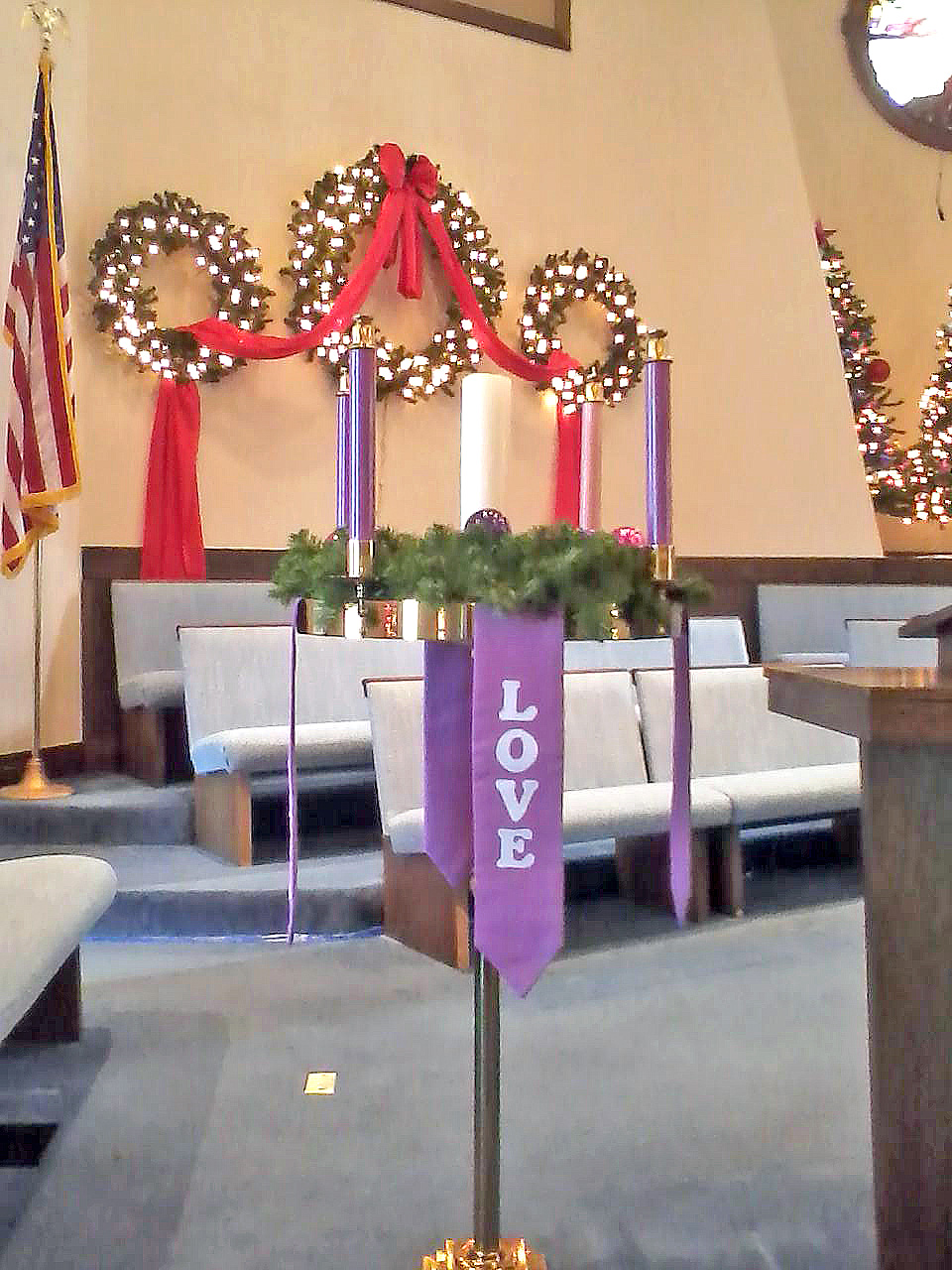 PageChristmas DecorationsChristmas decorations include indoor and outdoor ornaments, lights, wreaths, nativity scenes, and tree decorations. Choose a few colors or themes that suit your space, then use them to create a festive look without overcrowding the room.
- PageFree Christmas Clip ArtFree Christmas clip art is available from image libraries and public-domain collections, but each image can have different rules for use. Check the license before downloading, especially if you plan to use the art in a project for business or publication.
- PageWallpaperFor a computer, wallpaper is the image or color shown behind icons on the desktop; it’s also called a desktop background. You can use a photo, illustration, or a built-in image and change it in your computer’s display or personalization settings.